
Manual Calls
Manual call action is a valuable tool in your platform that you can use to queue contacts that need to be called. Navigating Manual Calls In Conversations To begin, click Conversations in the left menu. Then click “Manual Actions” on the top menu.
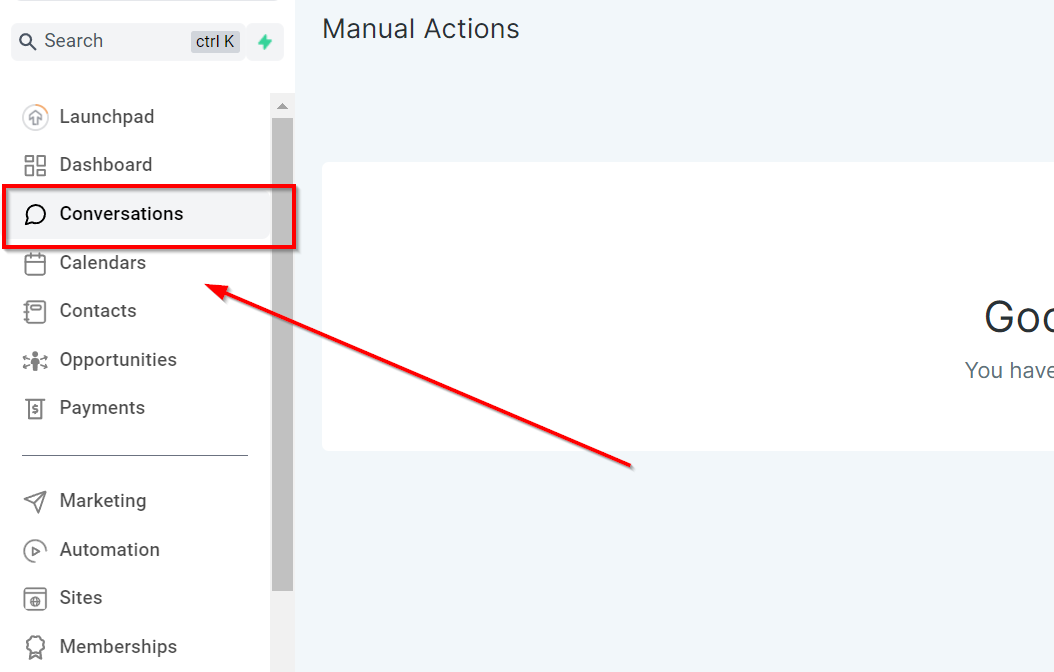
Then click Manual Actions on the top menu.
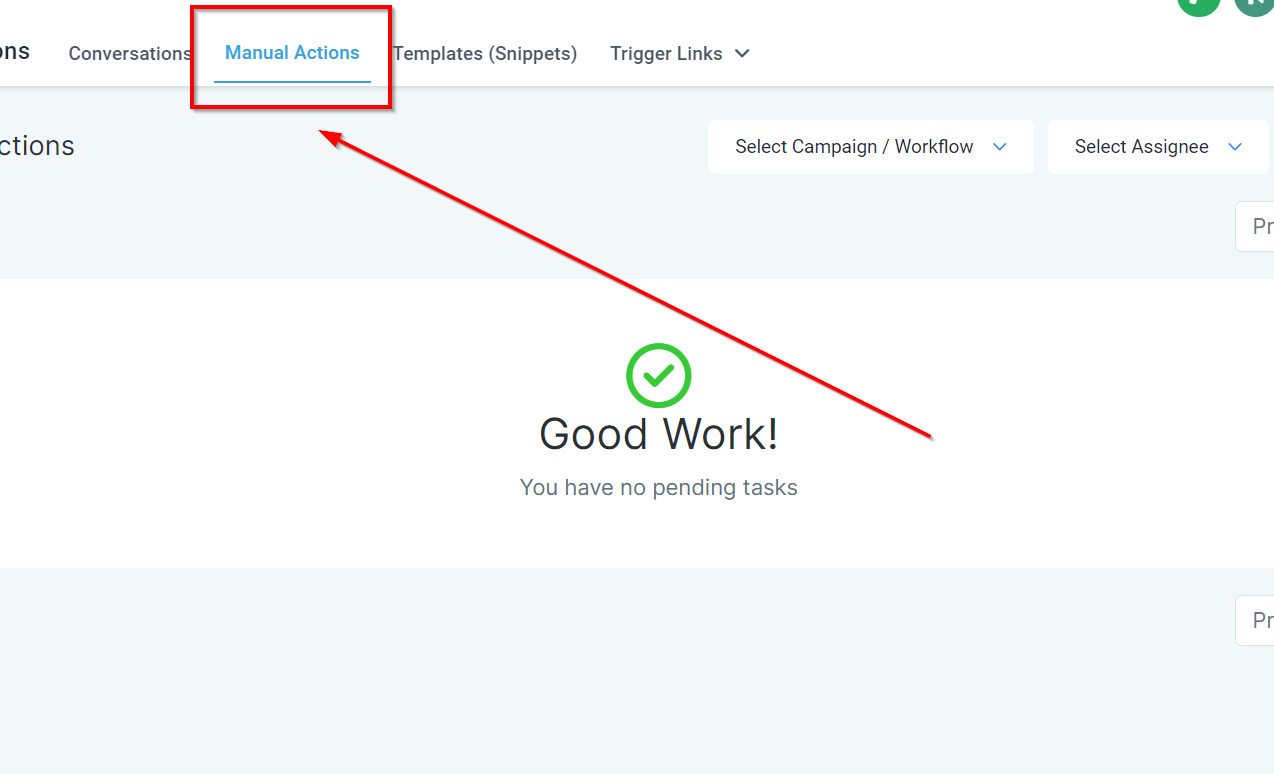
Previously Created Manual Actions
In this section, you’ll find all your previously created manual actions. You can sort these by workflows or by the assigned user.
Because we haven’t yet created any manual actions, we’ll need to set one up.
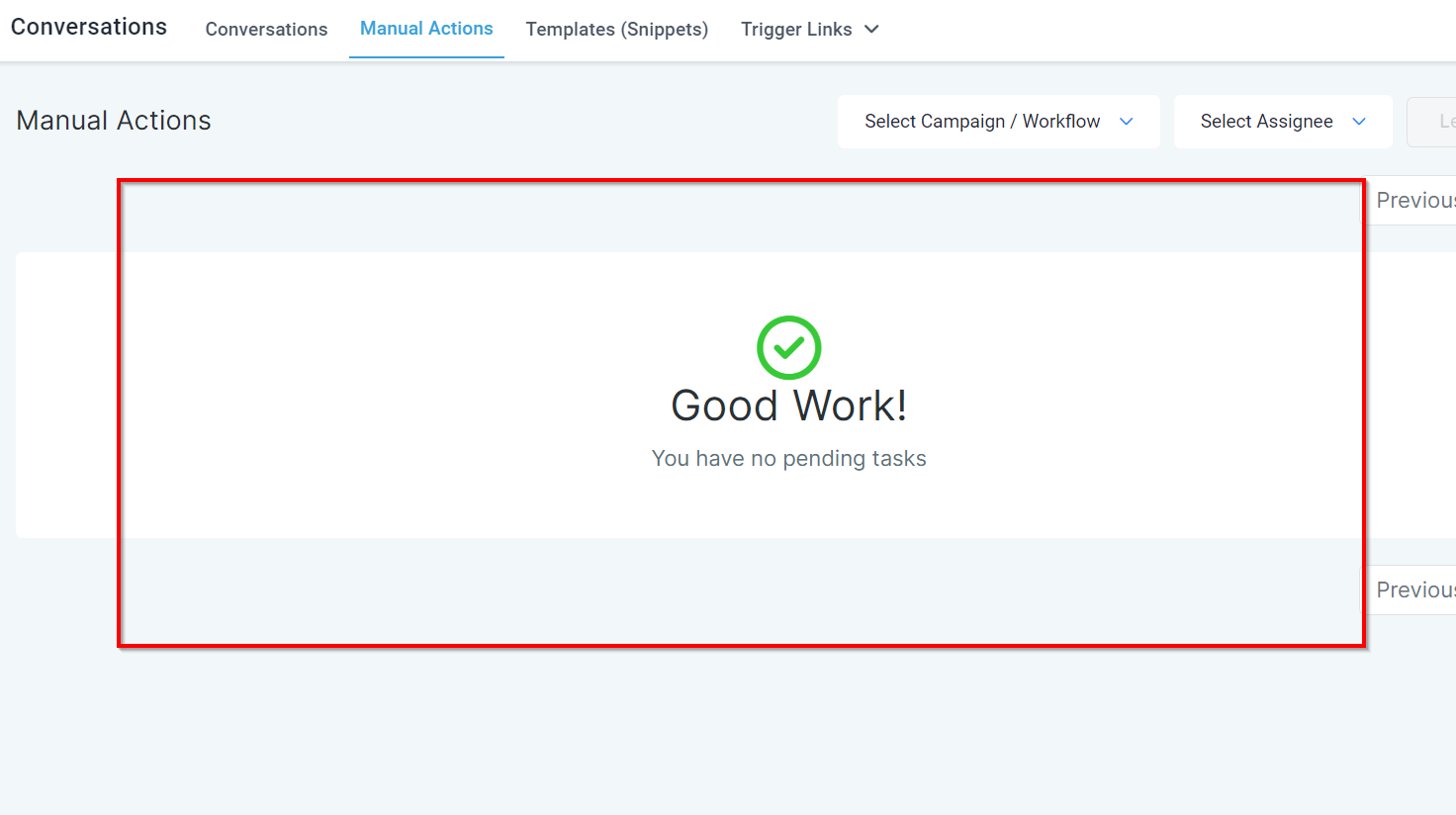
Navigating Manual Actions in Workflows
Manual actions are set up in workflows, so the first thing you’ll need to do is click “Automation” in the left menu.
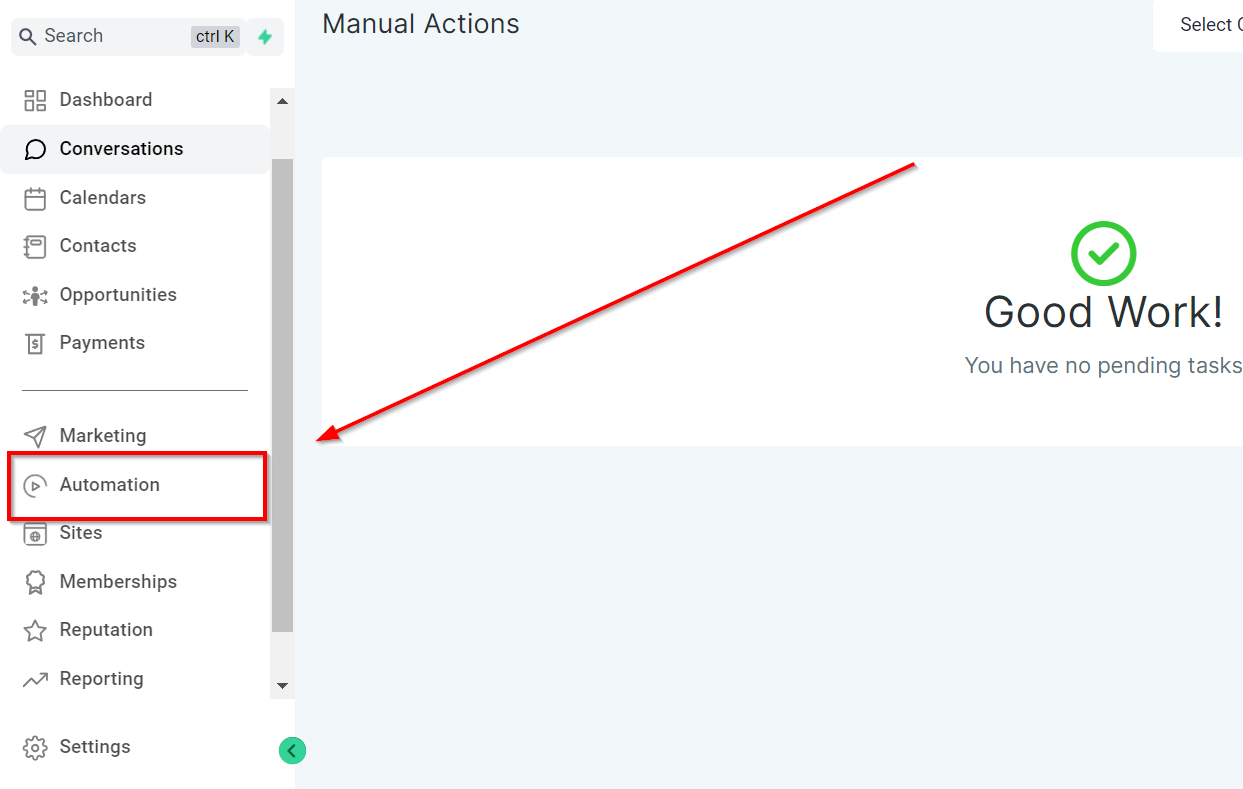
Once you’re in automation, click “Workflows” in the top menu. Then, select “Start from Scratch” in the main view. Lastly, click the “Create New Workflow” button at the top right.
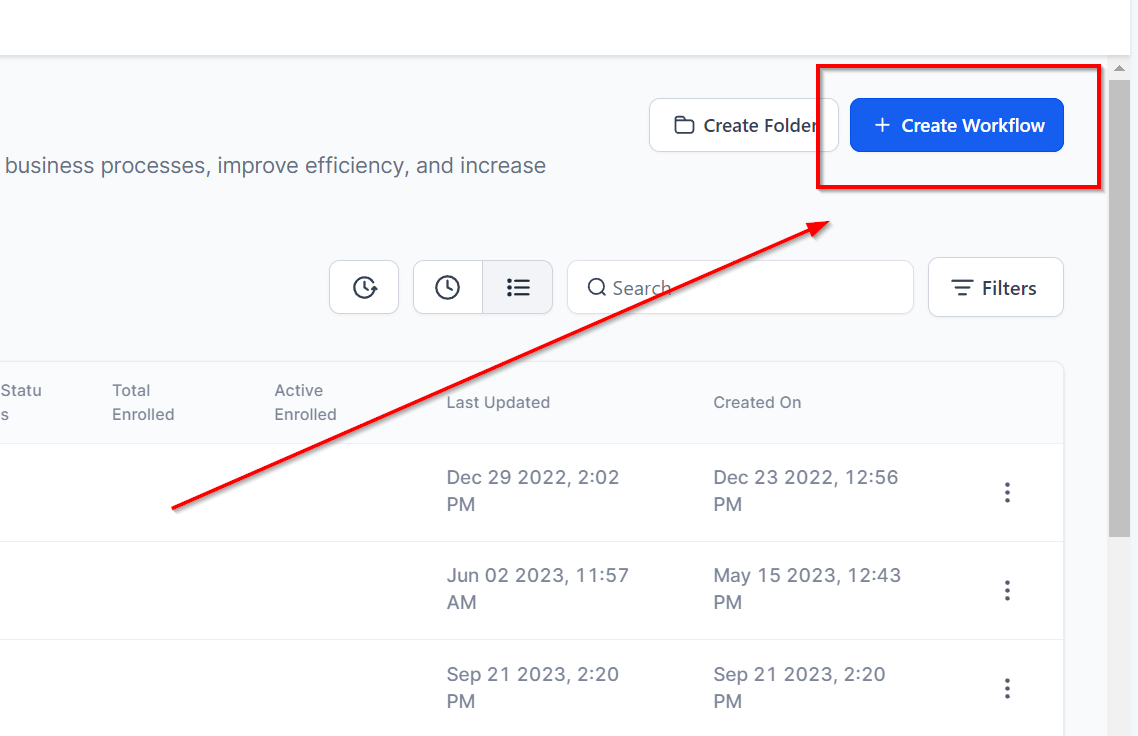
Set Up Actions
Inside the workflow is where you can set up an action. Click Add an action and search for manual actions. There are two types of actions:
- Manual Calls
- Manual SMS
In this article, we’re creating a manual call action, so we’ll select Manual Calls. Once selected, publish the workflow and click Save.

Adding Contacts For A Manual Call
Now, we’ll need to add contacts for a manual call action. Click Contacts in the left menu. Inside the contacts section, select one or multiple contacts that you want to add to the workflow by clicking the checkbox to the left of the contact’s name.
For this example, we’re only going to select one contact.
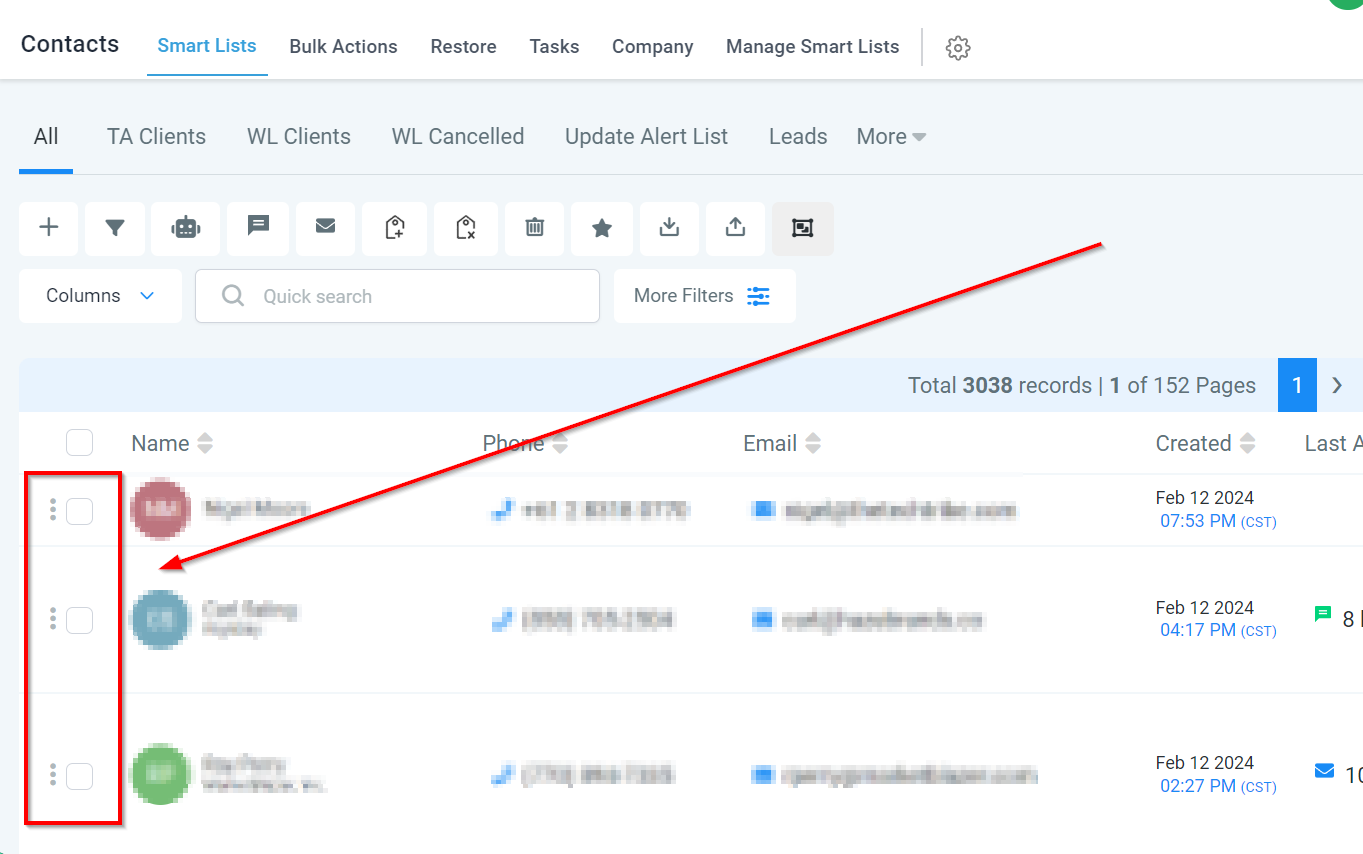
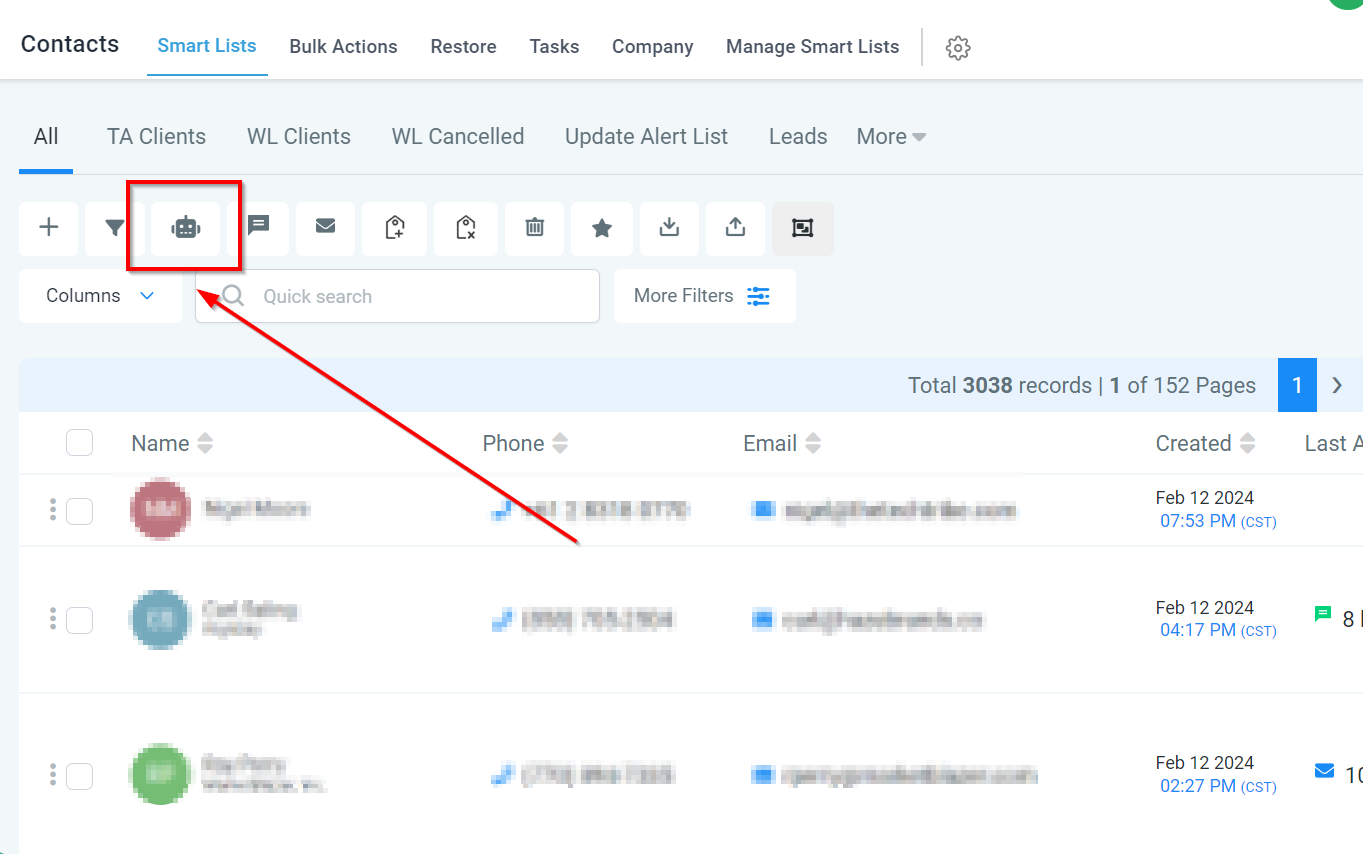
Once you’ve selected the contacts, click the “Add to Workflow” icon as shown below:
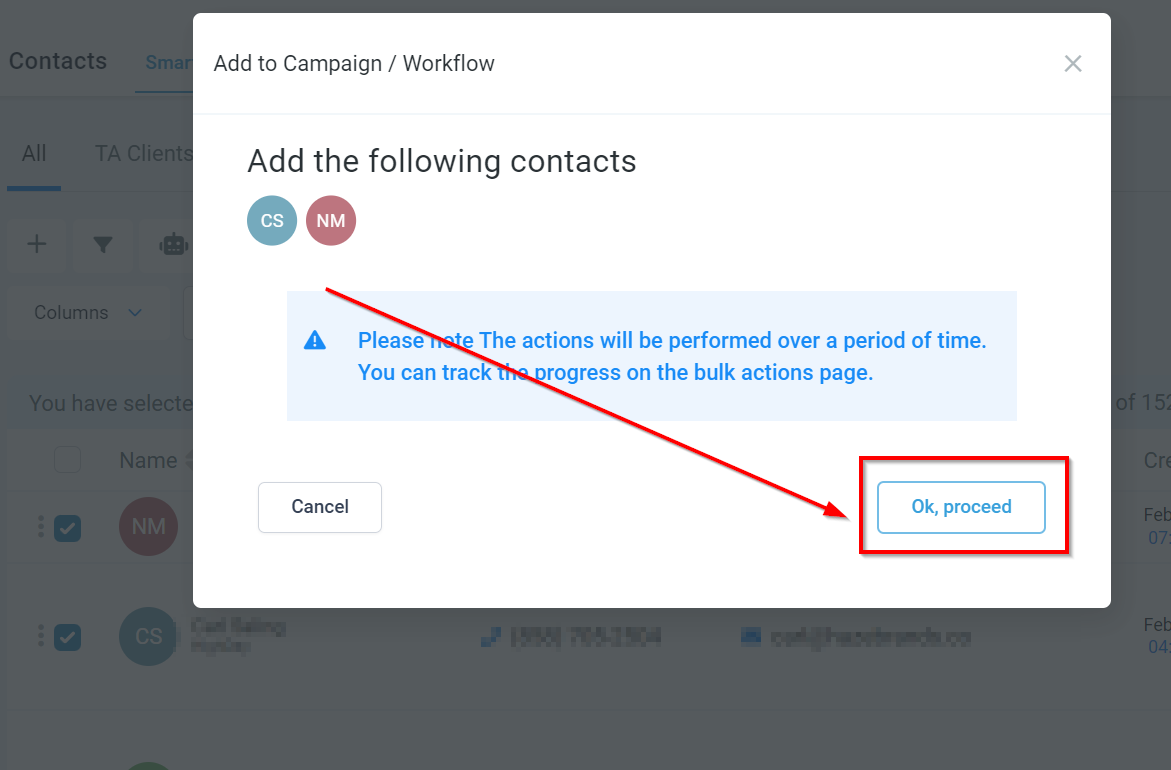
In the pop-up that appears, click the “Ok, proceed” button.
This will open a list of all your manual actions. Now, select the manual action workflow you just created.
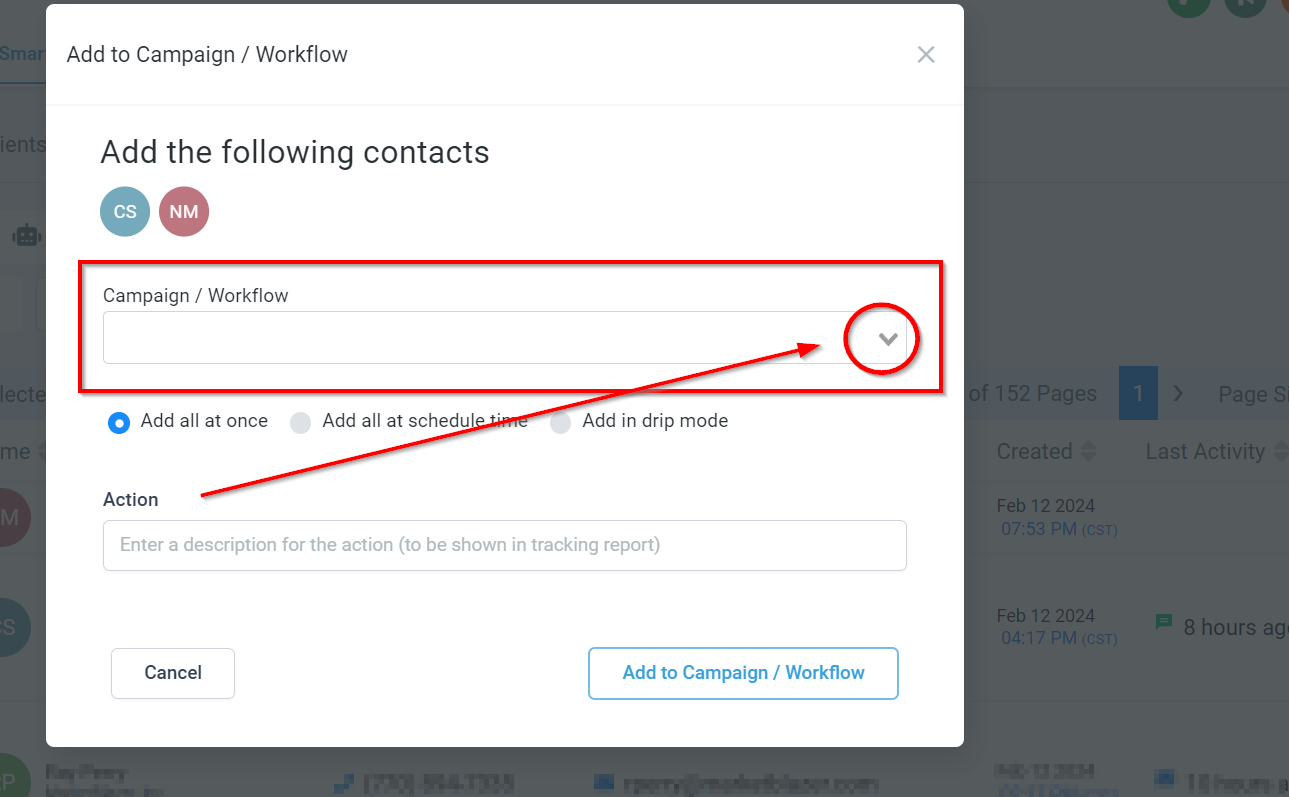
Ways To Add Contacts To Your Workflow
There are three ways to add contacts to your workflow:
- Add all contacts at once
- Add all at a scheduled time
- Add in drip mode
Once you’ve selected your desired option, click “Add to Campaign/Workflow.”
Next, let’s click “Conversations” on the left menu, and then click “Manual Actions.”
Here you can see the manual action we added for the single contact in our workflow:
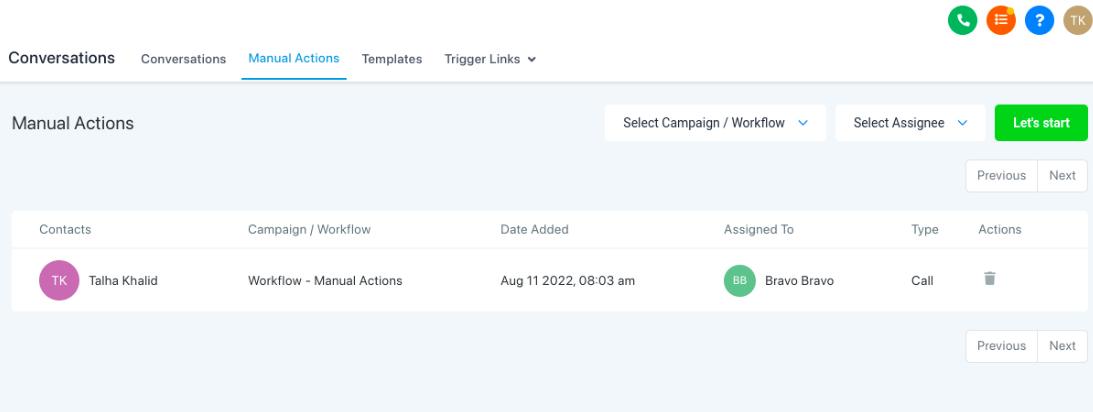
You can also see that our manual action is assigned to a user. This means that the manual action will show up on the dashboard of the assigned user to ensure they see it.
Begin Manual Call Action
To begin the manual call action, click “Let’s Start.”
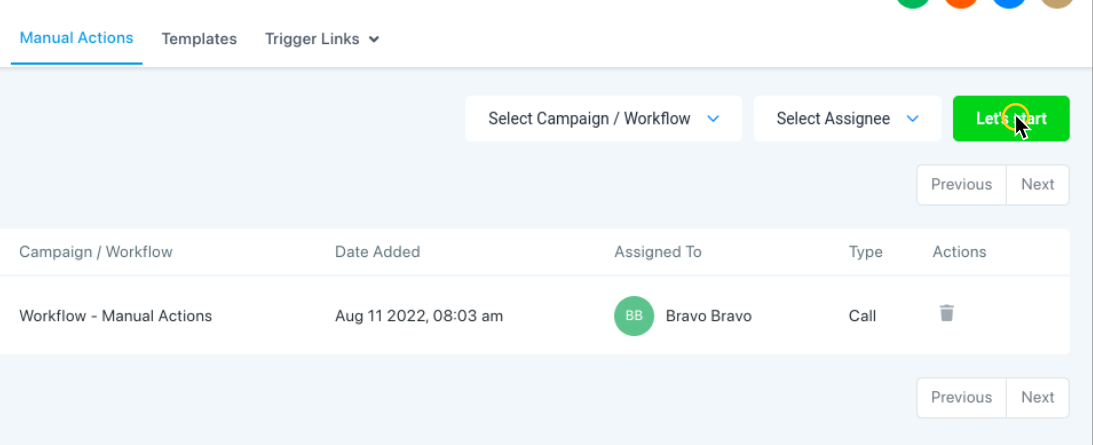
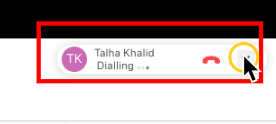
This will take you to the contact’s page and automatically dial the contact.
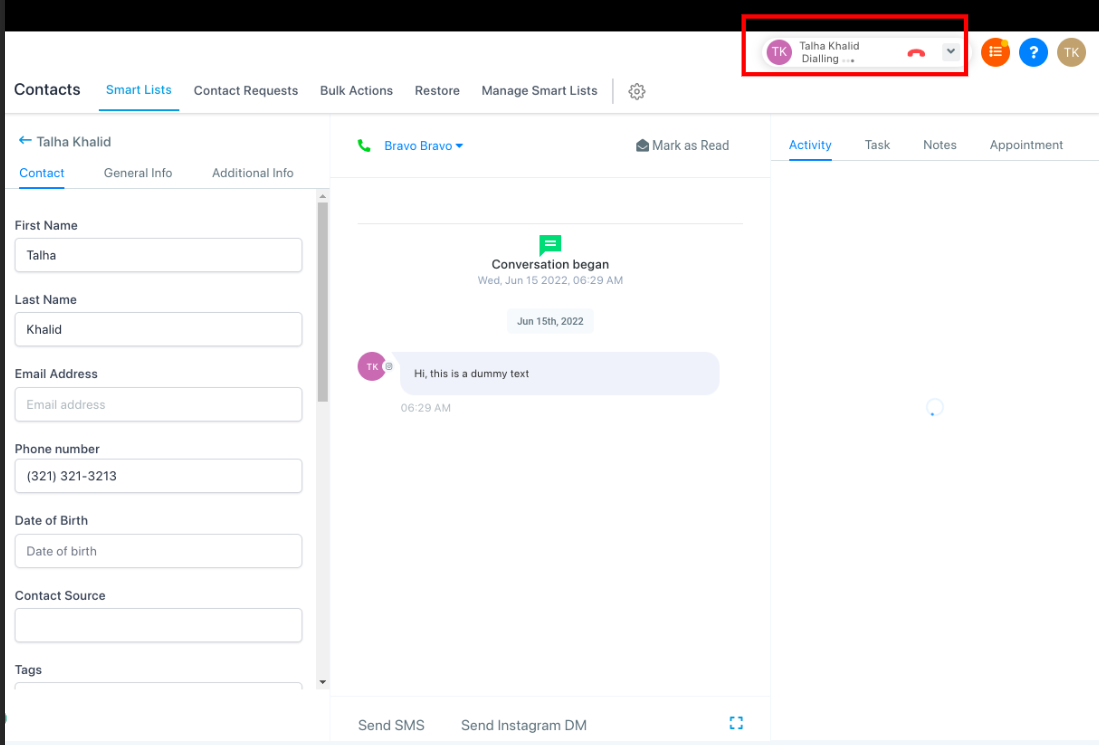
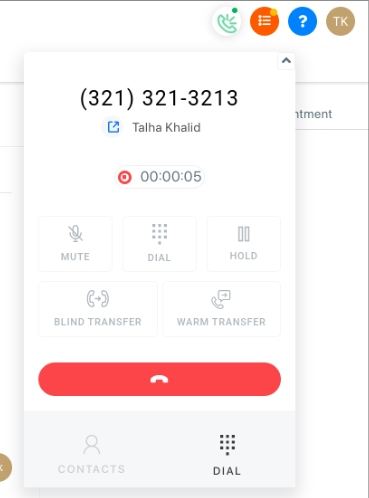
Click the dialer dropdown of the contact in the top right to see details of the call.
Multiple Contacts
If you have more than one contact queued up, the system will automatically start dialing the next contact after your previous call ends.
When you have multiple contacts to call, setting up a manual call action is a great way to automate your tasks for a more streamlined workflow.